
SafetyCompass user guide
A walk-through of everything inside SafetyCompass: what each part of the workspace is for, and how to use it day to day. Use it to train your team or to find your way around.
What SafetyCompass is
SafetyCompass keeps an organization's safety program in one workspace: workplace self-audits, findings and corrective actions, incident reporting and investigation, OSHA injury and illness recordkeeping, an ISO 45001 implementation roadmap, hazard analyses and pre-task planning, and reports you can download.
Each organization's records are kept separate from every other organization's, and what each person can see or change depends on the roles an owner gives them (see Roles and permissions).
SafetyCompass is a tool for running your program. It does not certify you to ISO 45001, and it is not legal advice: your organization remains responsible for the accuracy of its records and for its own submissions to OSHA.
Getting access and signing in
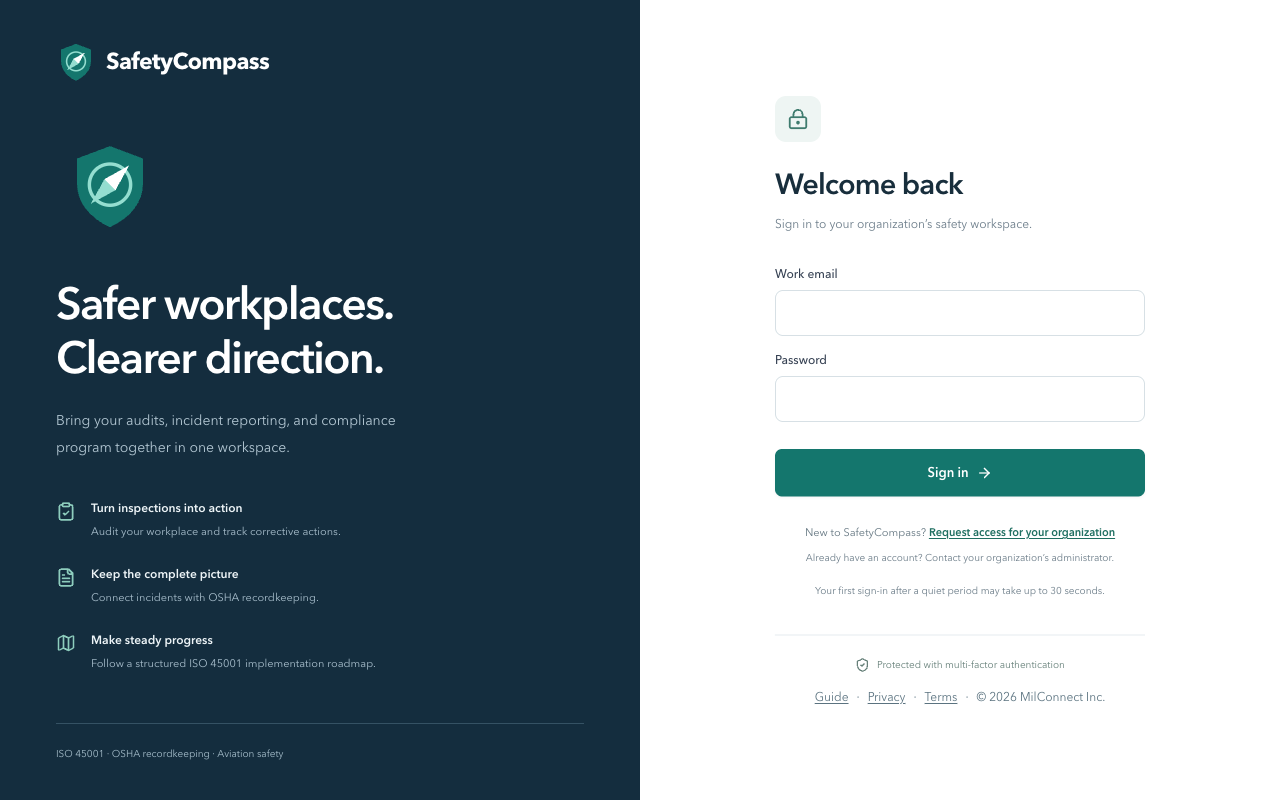
New organization: use Request access for your organization on the sign-in page (or go to /request-access). Tell us your organization, roughly how many people need seats, and how to reach you, and the setup team will get back to you to create your workspace.
Already have an account but cannot get in? Use the same form and tick "I already have an account and need help signing in", or contact your organization's administrator.
- Your administrator creates your account. You receive an email with your username and a temporary password.
- Sign in with the temporary password. You are asked to choose a new password and type it twice.
- Set up an authenticator app (for example on your phone): scan the QR code, or enter the setup key by hand, then type the 6-digit code the app shows.
- From then on, every sign-in asks for your password and a fresh 6-digit code. Multi-factor authentication is required for everyone.
Company setup
Open Company setup at the bottom of the sidebar. Owners and safety managers can edit it; everyone else can review it.
- Organization name.
- State or territory where the workplace is located (required). It decides which state rules appear in the Standards library, the workers' compensation item on annual audits, and the jurisdiction shown on reports. The setup screen shows whether your state runs its own OSHA State Plan or is covered by federal OSHA.
- Departments, each with an employee count and a risk level. Audits and incidents are filed against these departments, and filters across the workspace use them.
- Fiscal year start month. Reports & exports uses it to build fiscal years and fiscal weeks. January means your fiscal year is the calendar year.
The first owner to sign in is taken through this setup before the workspace opens. Organizations set up before the state picker existed see a prompt to pick their state; until then only federal sources are shown.
Overview
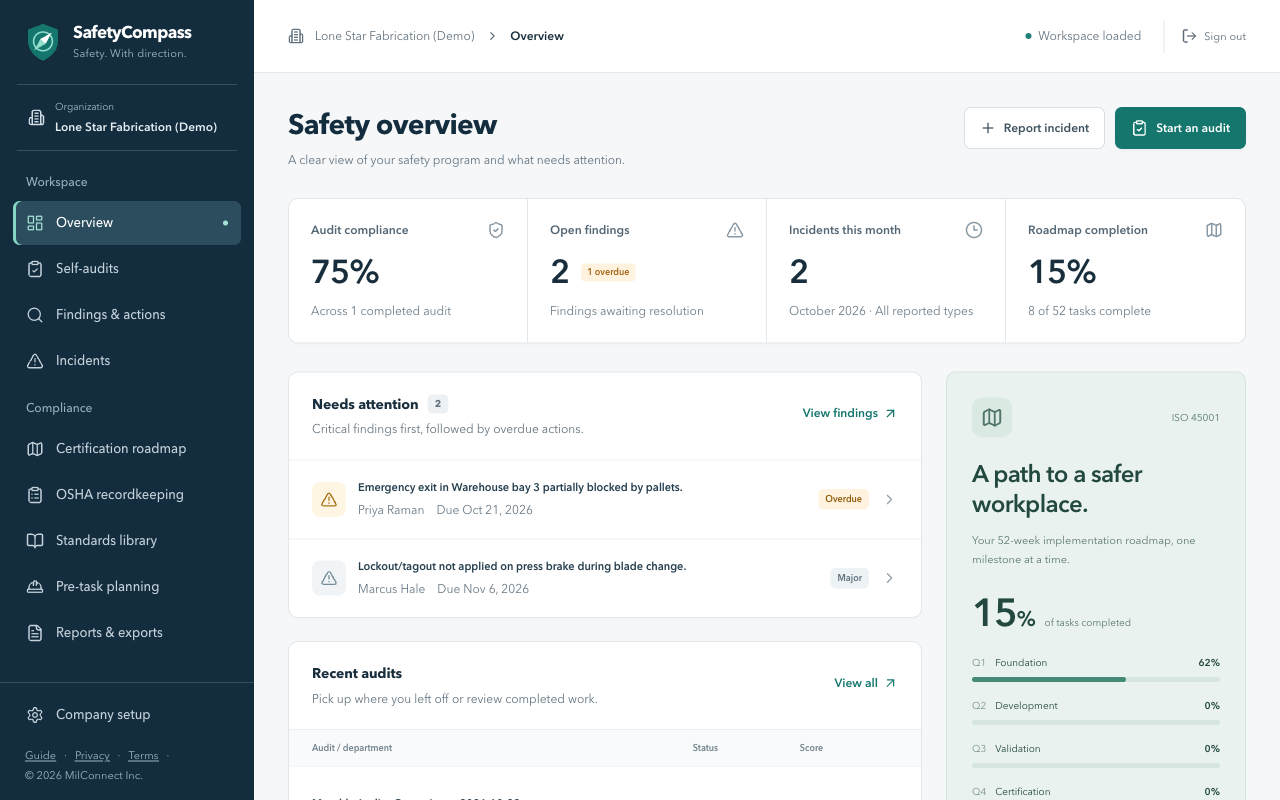
The Overview is your safety program at a glance, and the place to pick up work.
- Headline figures: audit compliance, open findings (with how many are overdue), incidents this month, and roadmap completion.
- Needs attention: open findings, critical first, then overdue corrective actions.
- Recent audits: continue an audit in progress or open a completed one.
- Recent incidents: reported events and near misses across the organization.
- Report incident and Start an audit buttons, and shortcuts to the certification roadmap, OSHA recordkeeping and reports.
Self-audits
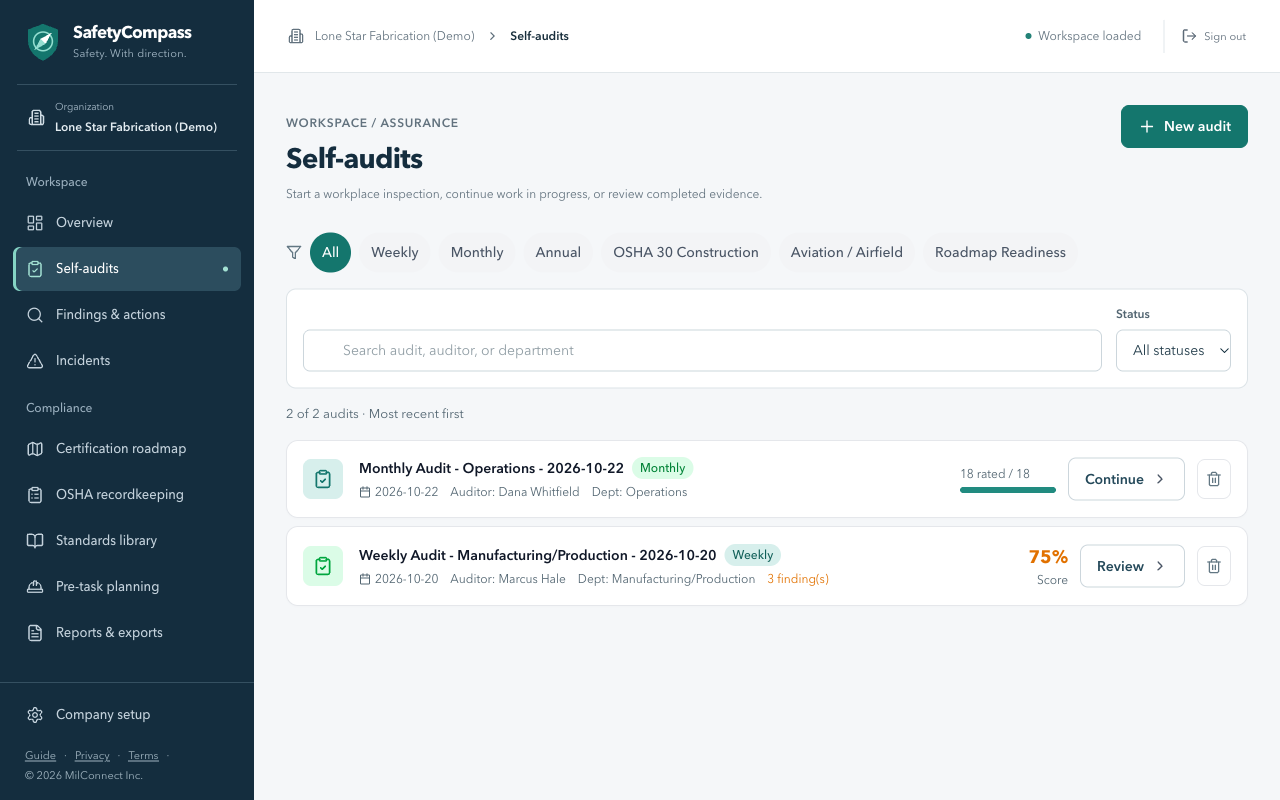
Self-audits are your workplace inspections. Start one, work through the checklist, and record what you found.
- Audit types: Weekly Inspection, Monthly Review, Annual Comprehensive Audit, OSHA 30-hour construction, and aviation checklists, plus readiness audits started from the certification roadmap.
- Checklists can follow General Industry (29 CFR 1910), Construction (29 CFR 1926) or Aviation (FAA / 14 CFR Part 139).
- Search and filter audits by department and status: not started, in progress, completed, overdue.
- In Self-audits, start an audit: choose the type and department and enter your name.
- For each checklist item, mark it Compliant, Partial or Non-Compliant (or leave it not applicable), and record evidence and observations.
- Where something needs fixing, add a finding: severity, description, citation, root cause, corrective action, responsible person or contractor, target date, and photos.
- Complete the audit. Its score and findings stay on the record, and the findings appear in Findings & actions.
Findings & actions
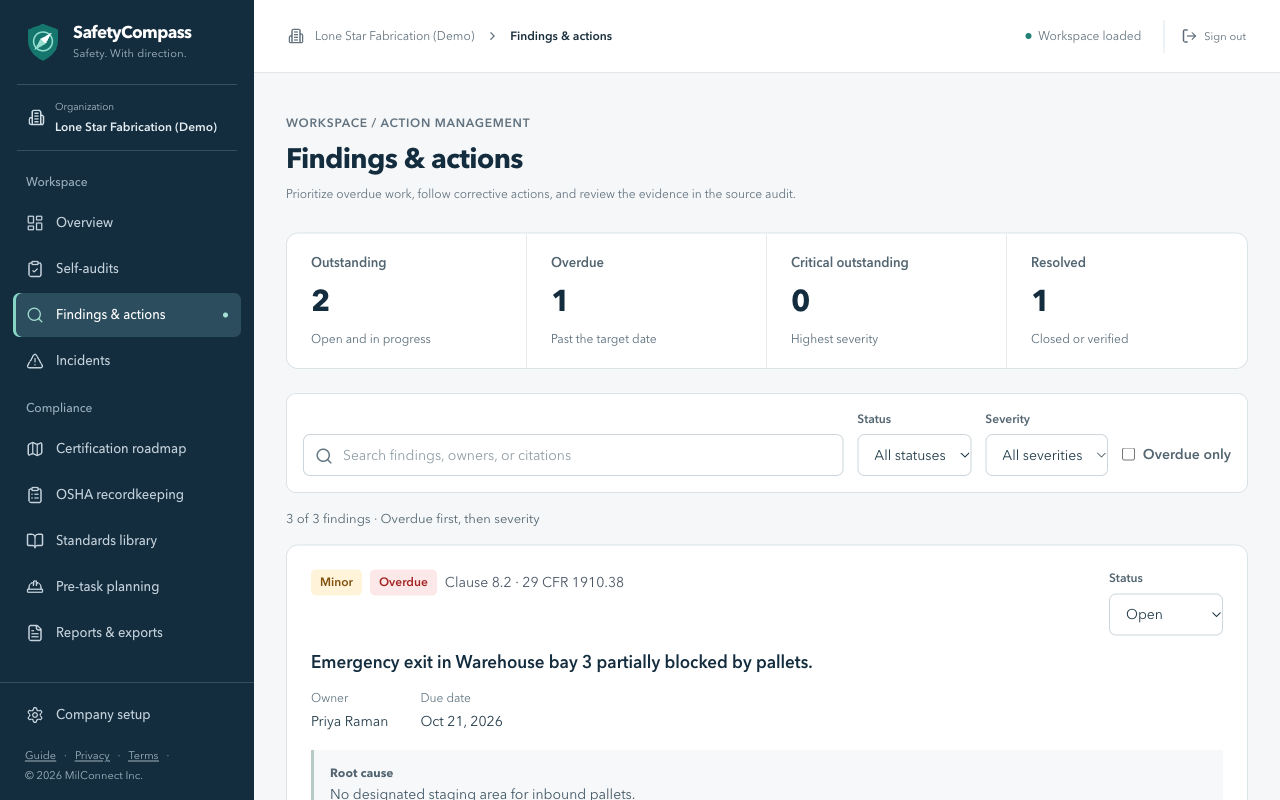
Every finding from every audit, in one list, so corrective actions get done.
- Severity: critical, major, minor, or observation.
- Status: open, in progress, closed, verified. A finding past its target date shows as overdue.
- Search by finding, owner or citation; filter by severity and status; open the source audit to see the evidence.
- Supervisors can record progress on the actions they are responsible for. Changing what was found, closing a finding, or verifying it stays with auditors, so nobody signs off their own finding.
Incidents
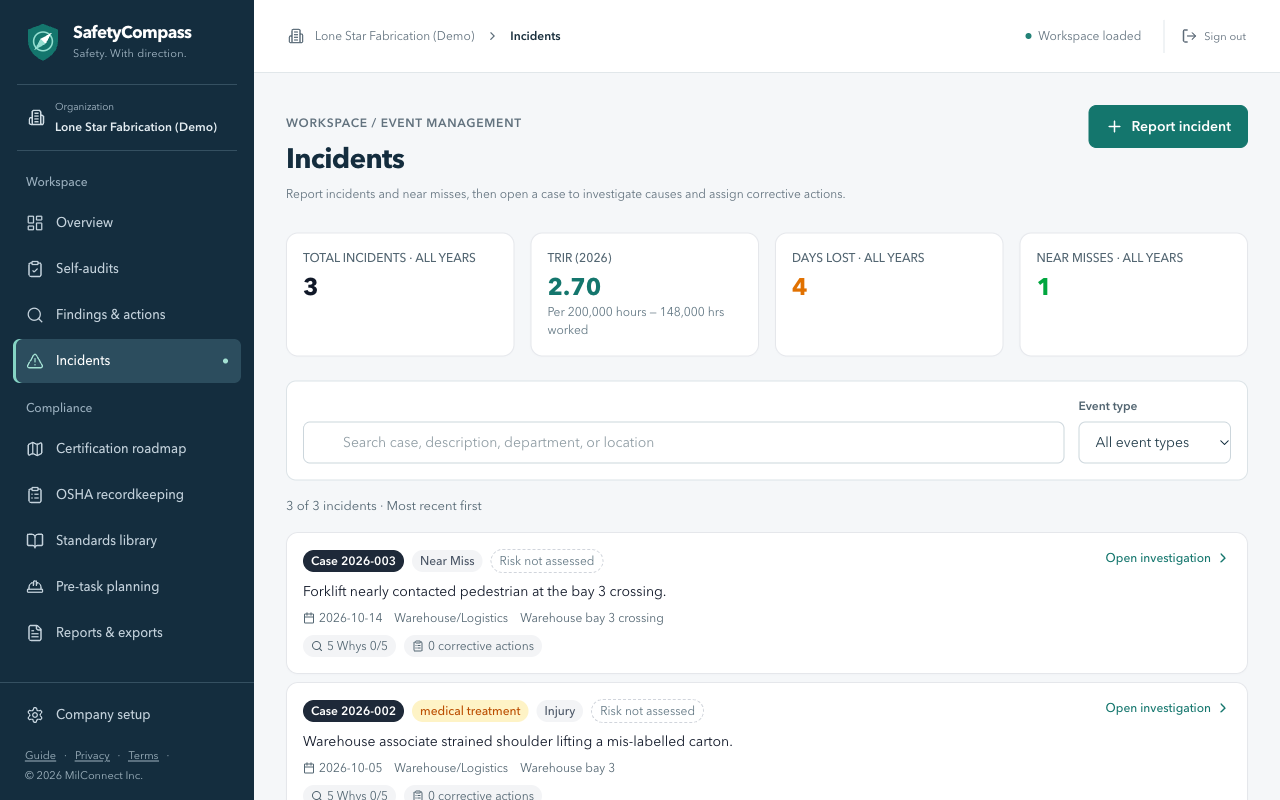
Report incidents and near misses, then open the case to investigate and assign corrective actions.
- Event types: injury, illness, near miss, property damage, environmental. Severity: first aid, medical treatment, lost time, fatality.
- The investigation records root cause, contributing factors, who investigated and when, and corrective actions, each with an owner, a target date and a status (open, in progress, completed, verified effective).
- A structured risk assessment and a linked hazard analysis (JHA/AHA) can be attached to the case.
- Recordkeeping fields feed the OSHA 300 Log: case classification (columns G to J), days away and days restricted (K and L), injury or illness type (M), and whether it is a privacy case.
Medical detail is restricted. The employee's home address, date of birth, sex, physician, treatment facility, emergency-room and overnight-stay answers, and the description of the injury itself (OSHA 301) can be seen and edited only by people with the Medical records role. Owners and safety managers do not get it automatically. On a privacy case, the employee's name is hidden from everyone without that role, as on the 300 Log.
- In Incidents, report the event: what happened, where, when, the department, type and severity. Anyone with a reporting role can do this.
- Open the case to investigate: root cause, contributing factors and corrective actions.
- A record keeper completes the OSHA fields, and the Medical records role completes the employee's medical detail.
Certification roadmap
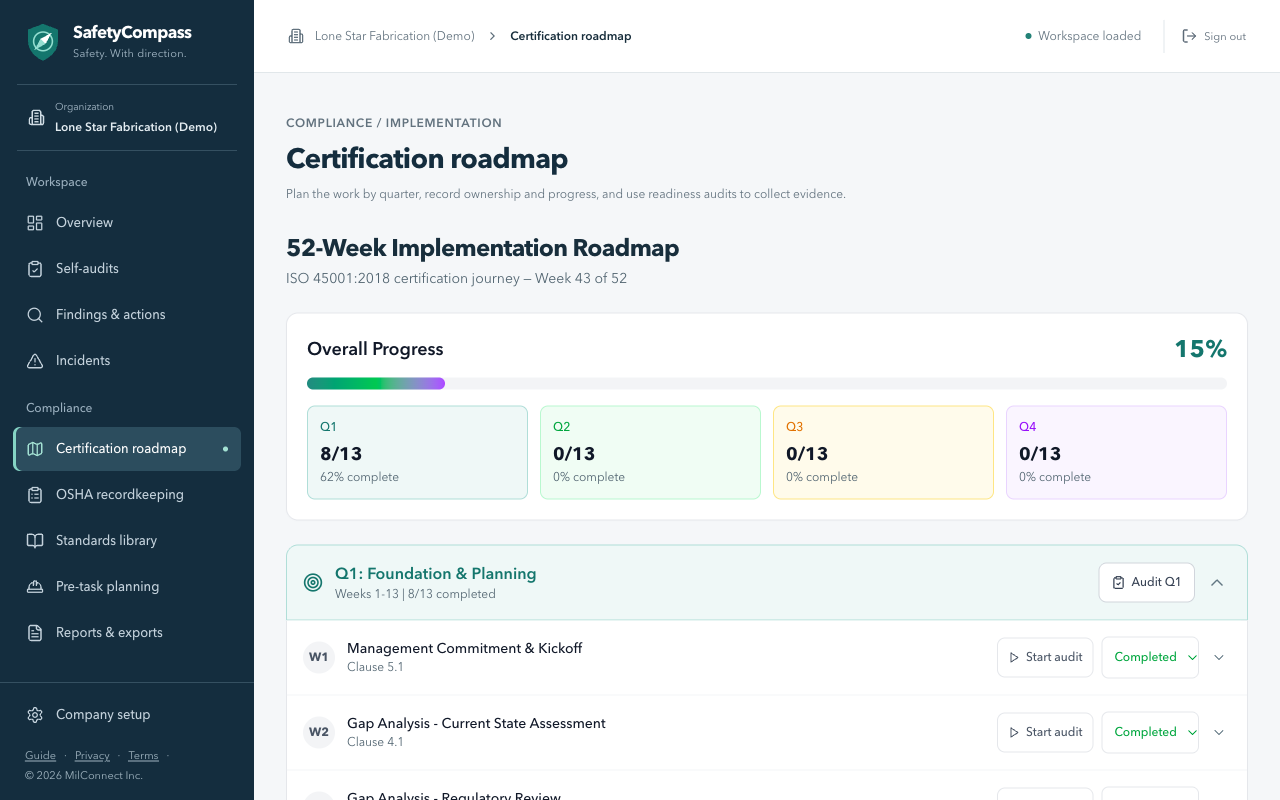
A 52-week ISO 45001 implementation plan in four quarters: Q1 foundation and planning through Q4. Each week has a milestone, the ISO clause it addresses, and the deliverables it should produce.
- Set each week's status: Not Started, In Progress, or Completed. Progress rolls up by quarter and overall.
- Start audit on any week opens a readiness audit for that milestone, so you collect evidence as you go.
- Audit Q1 (Q2, Q3, Q4) opens a readiness audit covering the whole quarter.
The roadmap is a plan and an evidence trail. Certification itself is granted by an accredited certification body, not by the app.
OSHA recordkeeping
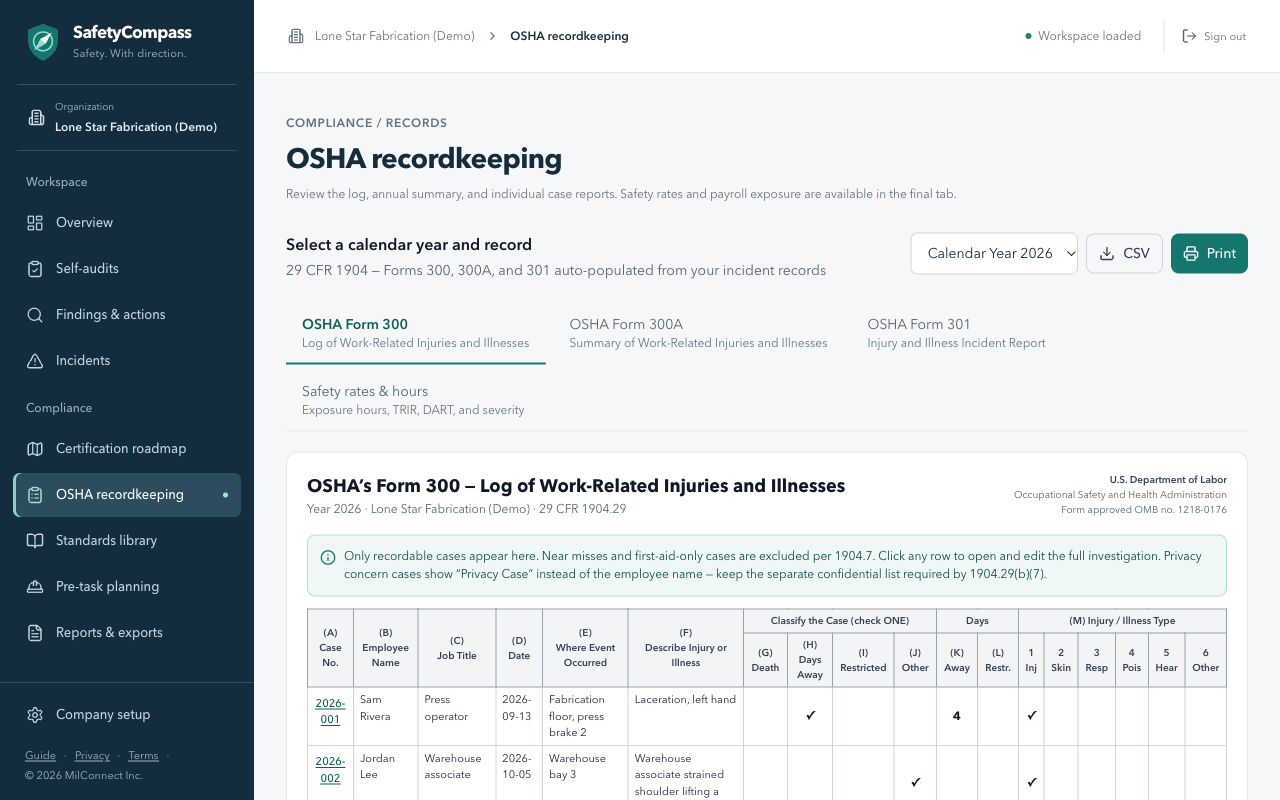
The OSHA injury and illness forms, built from your incidents. Choose the calendar year at the top; OSHA's year is always the calendar year, whatever your fiscal year is.
- 300 Log: every recordable case for the year, by OSHA column. Privacy-case names are withheld. Download it as a CSV.
- 300A Summary: the annual totals, ready to certify and post from February 1 through April 30.
- 301 Incident Report: one case at a time. Pick an incident to see its 301; open the case to fill in anything missing.
- Safety rates & hours: enter hours worked and average employees for the year to get TRIR and DART rates. Rates use estimated hours until you enter real ones, and say so.
Standards library
A searchable reference of the standards your audits cite: general industry and construction OSHA requirements, reporting rules, and an airport construction safety framework (construction safety and phasing plans, safety areas, FOD control, SIDA badging, vehicle conspicuity and more).
State-specific requirements for the state chosen in Company setup appear next to the federal ones, under a source filter named for your state (for example California State). Each one links to the official text and shows the date it was last checked. The General Industry tab shows your state's framework: whether federal OSHA or a State Plan covers you, and your state's workers' compensation agency. States with their own OSHA program can have rules stricter than federal OSHA, such as written injury prevention programs, safety committees and heat illness rules; where a state has no entry listed, only its coverage and agency are shown, so confirm current state requirements with that agency.
Hazard analyses live here too. From a standard you can start a Job Hazard Analysis (JHA) or an Activity Hazard Analysis (AHA):
- Start from a starter template for that standard, or a blank form you fill in yourself.
- Standard layout, or the USACE EM 385-1-1 layout with a risk assessment code (RAC) for each phase and an overall RAC.
- Link an analysis to the incident that prompted it, and track each requirement of the standard.
- Saved analyses can be opened and edited again. Anyone with a reporting role can save one; deleting needs an owner or safety manager.
Pre-task planning
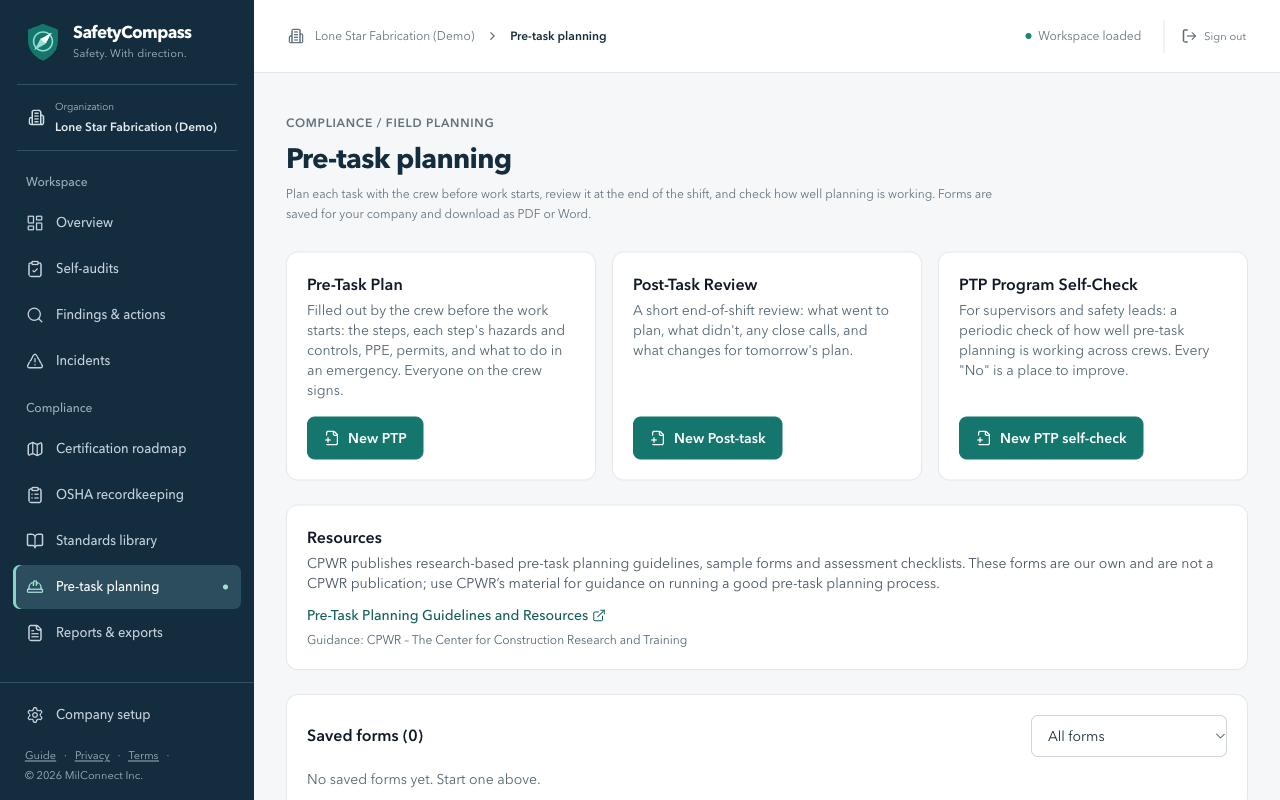
Fillable forms for planning work before it starts and reviewing it after. Each is saved to your organization, can be reopened and edited, and downloads as PDF or Word.
- Pre-Task Plan: the task, location, crew lead and shift; task steps, each with its hazards and controls; PPE required; permits, tools, and nearby work by other crews; emergency information (nearest medical facility, muster point, how to call for help); stop-work triggers; a short checklist; and crew review and sign-off.
- Post-Task Review: an end-of-shift review of what went as planned, what did not and why, close calls, hazards that were not on the plan, and changes for the next shift's plan.
- PTP Program Self-Check: for supervisors and safety leads, questions for checking how well pre-task planning is working across crews, with strengths, improvements, and actions with owners and dates.
Filter saved forms by type. A Resources card links to the Center for Construction Research and Training (CPWR) pre-task planning guidance. Saving needs a reporting role; deleting needs an owner or safety manager.
- Open Pre-task planning and choose New PTP, New Post-task or New PTP self-check.
- Fill it in and save. It appears in your saved forms.
- Open a saved form to edit it, or download it as PDF or Word for the crew briefing.
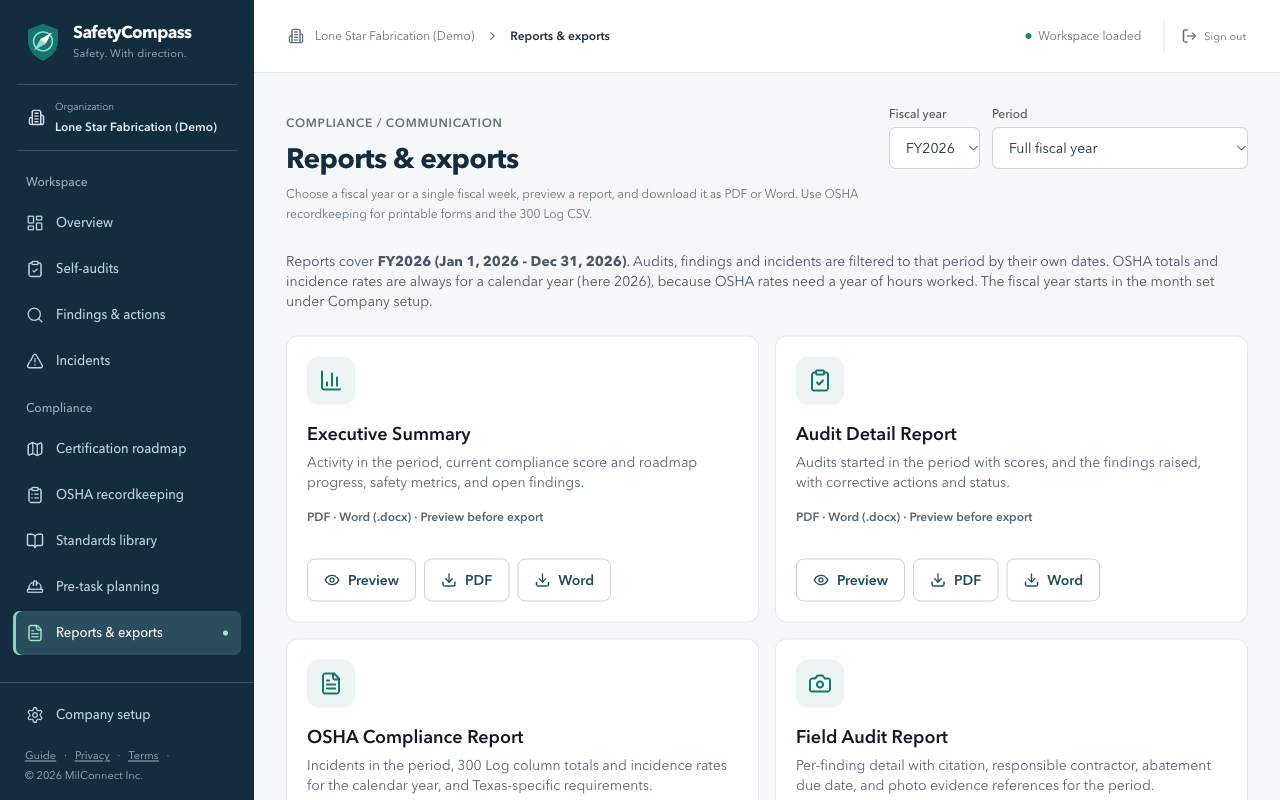
Reports & exports
Four reports, each with Preview, PDF and Word:
- Executive Summary: activity in the period, the current compliance score and roadmap progress, safety metrics, and open findings.
- Audit Detail Report: audits started in the period with their scores and findings.
- OSHA Compliance Report: recordkeeping status, 300 Log column totals and incidence rates.
- Field Audit Report: each finding with its citation, responsible contractor, due date and photo evidence references.
Choose the period at the top right: a fiscal year (the list includes the next five years) and either the full year or a single fiscal week. Weeks run Monday to Sunday, and week 1 contains the first day of your fiscal year.
Audits, findings, incidents and forms are filtered to the period by their own dates. OSHA totals and rates always cover a calendar year, because OSHA rates need a year of hours worked. A weekly report shows that week's counts with year-to-date rates.
Connected apps
An owner or safety manager can connect Meridian Helm, an AI-assisted business workspace, so it can read your safety picture (incident and DART rates, overdue findings and corrective actions, incidents and audits) and draft updates such as logging a finding.
- You start the connection in Helm and approve it inside this app with your authenticator code.
- The connected app acts with your roles, minus Medical records. It never receives OSHA 301 or any employee medical information.
- Every change it proposes waits for approval in Helm before anything is saved here, and the audit trail records which app made it and who approved it.
- See and disconnect connected apps at any time under Connected apps, linked from the Status page.
Roles and permissions
An owner assigns each person one or more roles. The server enforces them; the screens grey out what you cannot change.
- Owner: everything an administrator does, including company setup, connected apps, and deleting audits, incidents and forms.
- Safety manager: the same administrative rights as an owner.
- Medical records: keeps the OSHA records and is the only role that can see and edit employees' 301 medical detail and privacy-case names.
- Auditor: runs audits, records and closes findings, and updates the roadmap.
- Supervisor: reports and investigates incidents, and records progress on the corrective actions they own.
- Executive: reads the workspace and its reports.
Record keepers (owner, safety manager, medical records) change OSHA recordkeeping fields and payroll hours. Anyone except an executive can report an incident, save a hazard analysis, or save a pre-task planning form.
Your data and security
- Multi-factor authentication is required for every account.
- Each organization's records are separated at the database itself, not just on screen.
- OSHA 301 medical detail is visible only to the Medical records role.
- Changes to legally relevant records are kept in an audit trail: who changed what, and when.
- Nothing is stored in your browser. Signing out on a shared tablet or hangar PC leaves no copy of the records behind.
- Records are backed up, and a monthly copy is kept in write-protected storage for at least five years, the retention OSHA requires for injury and illness records.
The Privacy Policy and Terms, linked at the bottom of every page, have the details.
Common questions
- The first sign-in of the day is slow. After a quiet period the database wakes up, which can take up to about 30 seconds. The page waits for it; you do not need to refresh.
- A banner says changes need attention. A save was refused or could not reach the server. The banner says why. Changes that could not be saved yet are retried, and a change the server refused (for example, one your role does not allow) is dropped, so check the record before editing again.
- I was asked to sign in again. Sign-ins renew on their own for 8 hours. After that, use Sign in again in the banner: it opens a new tab, and your unsaved change saves when you come back to the page.
- A field is greyed out. Your role cannot change it. The message names the roles that can; ask an owner.
- I cannot see an employee's name on a case. It is a privacy case, and only the Medical records role can see the name.
- How do we add people or seats? Ask your administrator, or use the Request access form.